
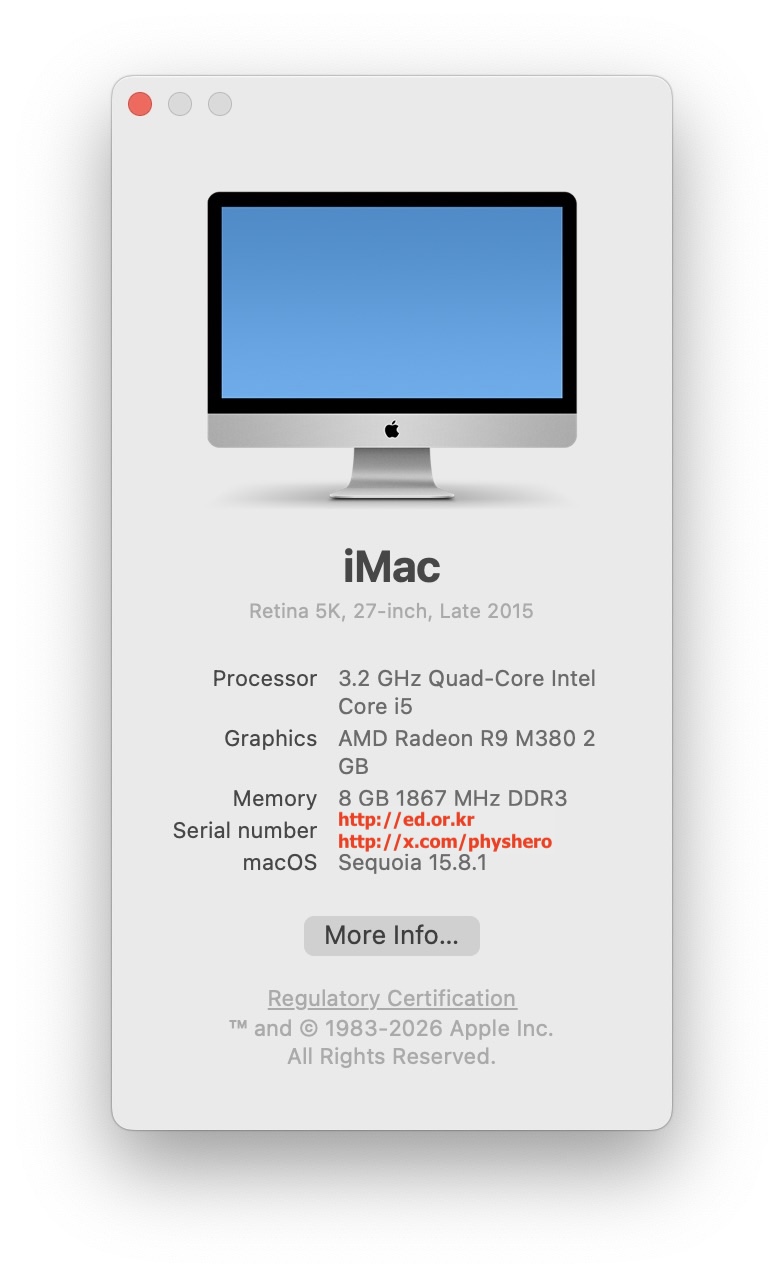
macOS 15 Sequoia & Muse on 2015 iMac
01. Introduction
My 2015 iMac home is still going strong, now with a 2TB SSD inside.
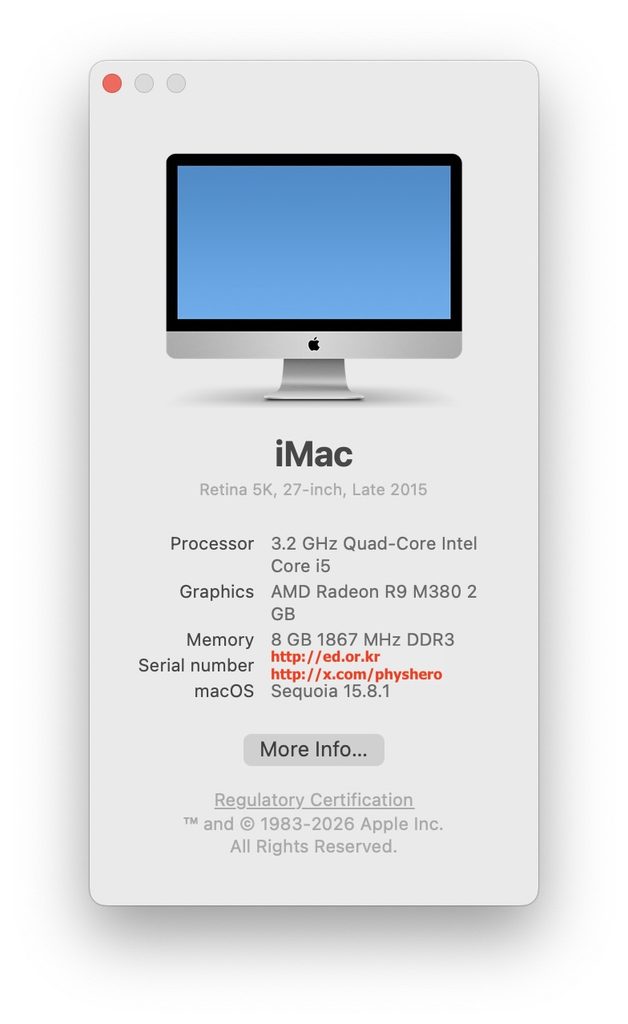
11 years ago when I bought it, I really thought I’d write lots of books and do great things with it. That never happened, unfortunately. I didn’t do nearly as much as I’d imagined. Still, this massive screen has proven hugely useful for work, so I use it all the time.
I mostly use it hooked up to various devices:
- On the iMac 5K: Google account online documents, bulk document management
- Remotely controlling my M2 MacBook
- Remotely controlling my Windows PC, editing HWP documents, accessing local sites
02. The old macOS 12 problem, and OCLP
But now that it’s stuck on macOS 12, there are just too many things I can’t do:
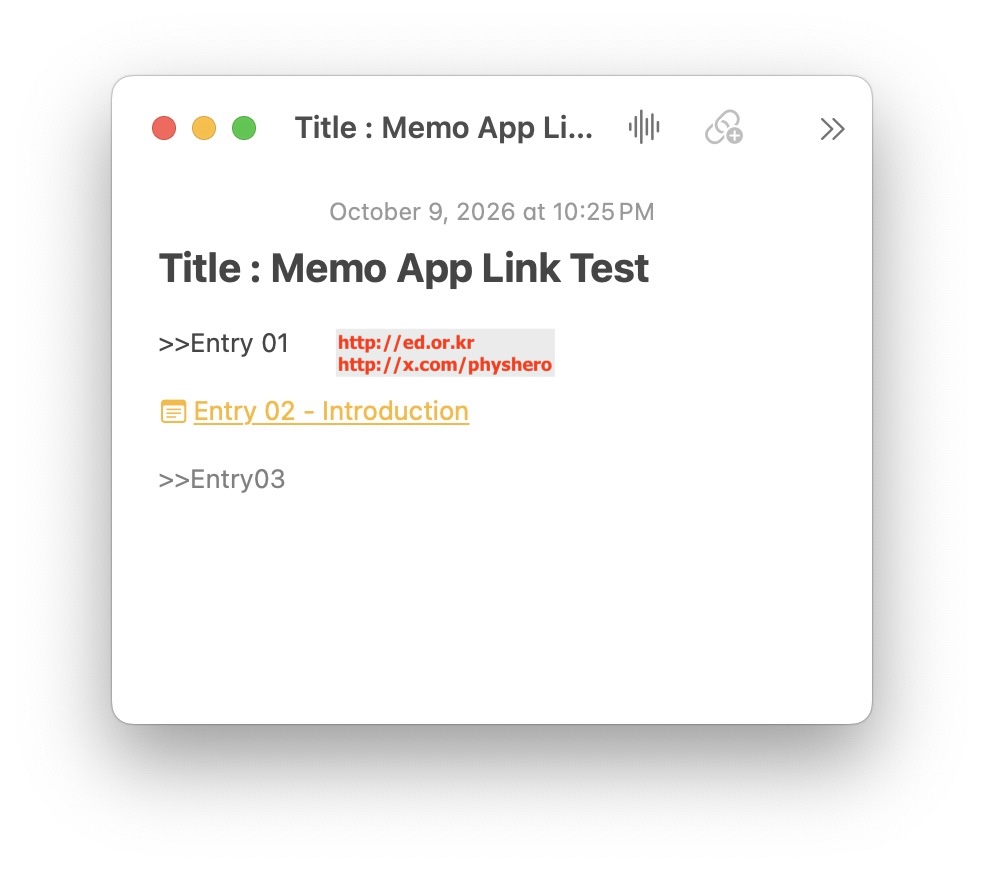
- iCloud Notes link conversion feature missing
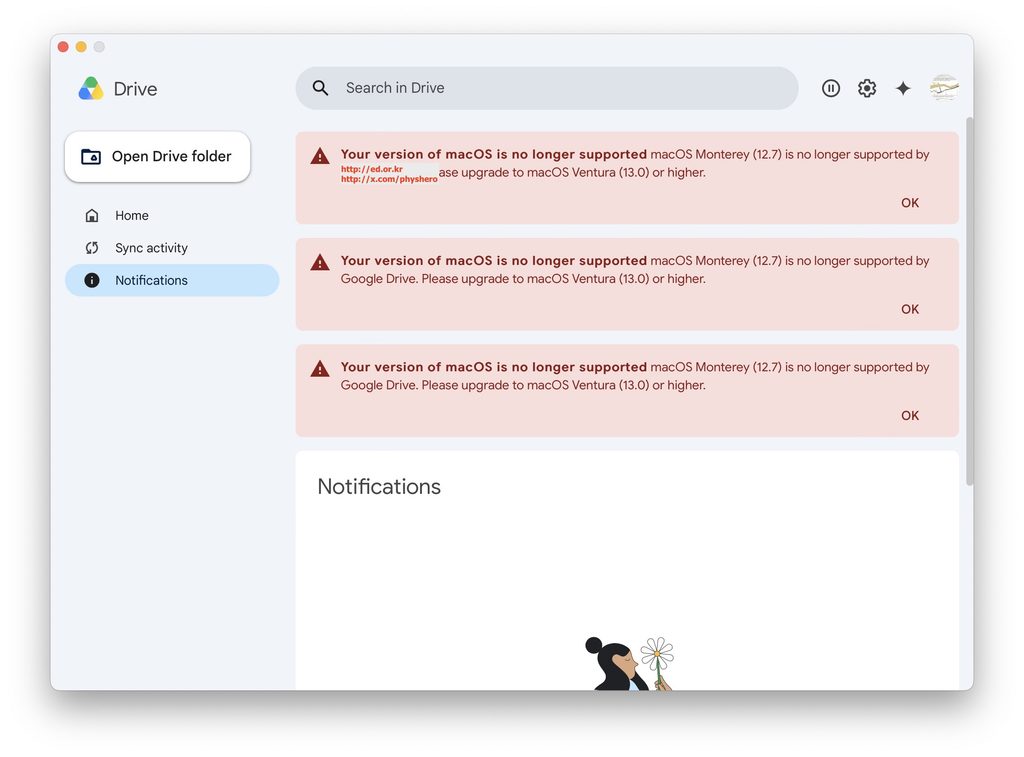
- Google Drive discontinuation warning
- Google Chrome discontinuation warning
- Office 365 apps can’t be installed
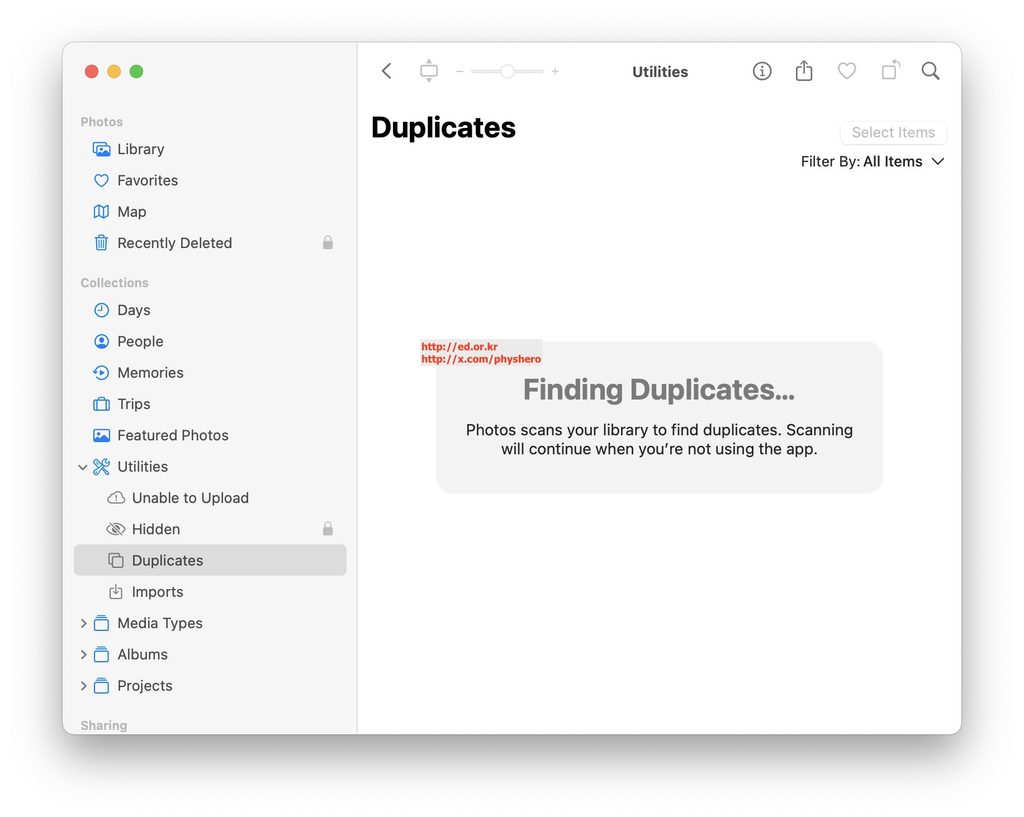
- Latest Photos app unusable
- Muse AI app can’t be installed
- Passwords passkeys unusable
It breaks my heart to see daily warnings that the apps I use most are blocked or about to be discontinued. On top of that, my work Google account got blocked twice recently, and Chrome kept flagging security concerns — so I started looking for a solution.
I looked at new iMacs too, but there’s no 27-inch model anymore. After some reflection, I decided on a forced update via an app called OCLP.
OCLP (OpenCore Legacy Patcher): an app that installs the latest macOS — a boot loader that enables newer macOS installations.
03. How to install
It’s similar to the old method from years ago of downloading the OS to a USB drive. You just need to pay attention to where the boot selection app (Boot EFI) gets stored.
1. To install the latest macOS 15, I added another 8GB of RAM to the existing 8GB. Old parts are cheap now, so I got the 8GB stick for a good price.
2. Download the latest OCLP app from the OCLP page on GitHub. Be careful not to land on lookalike sites.
https://github.com/dortania/OpenCore-Legacy-Patcher/releases/tag/2.5.1
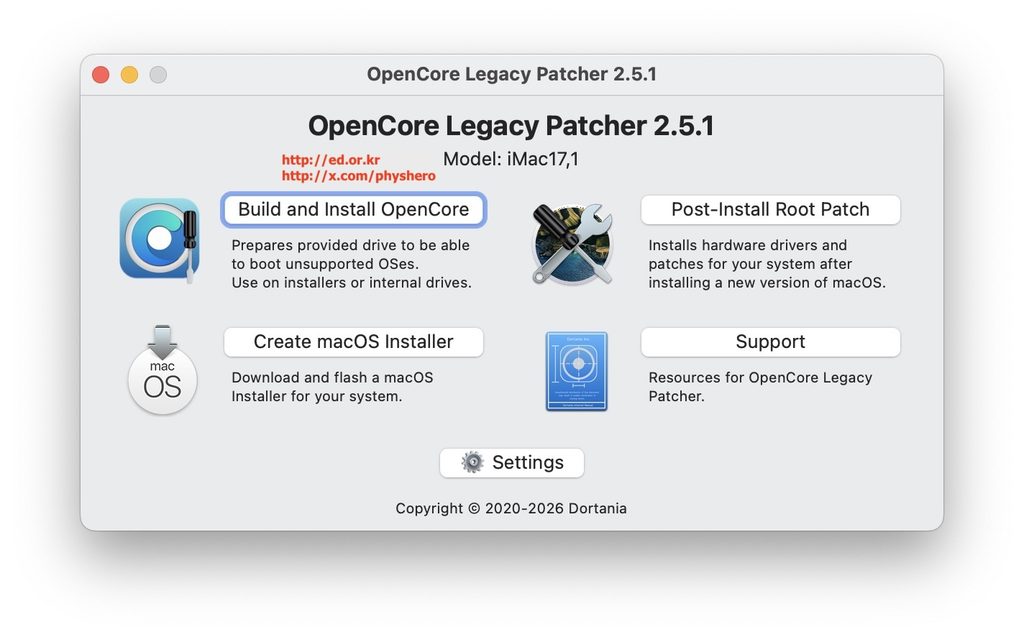
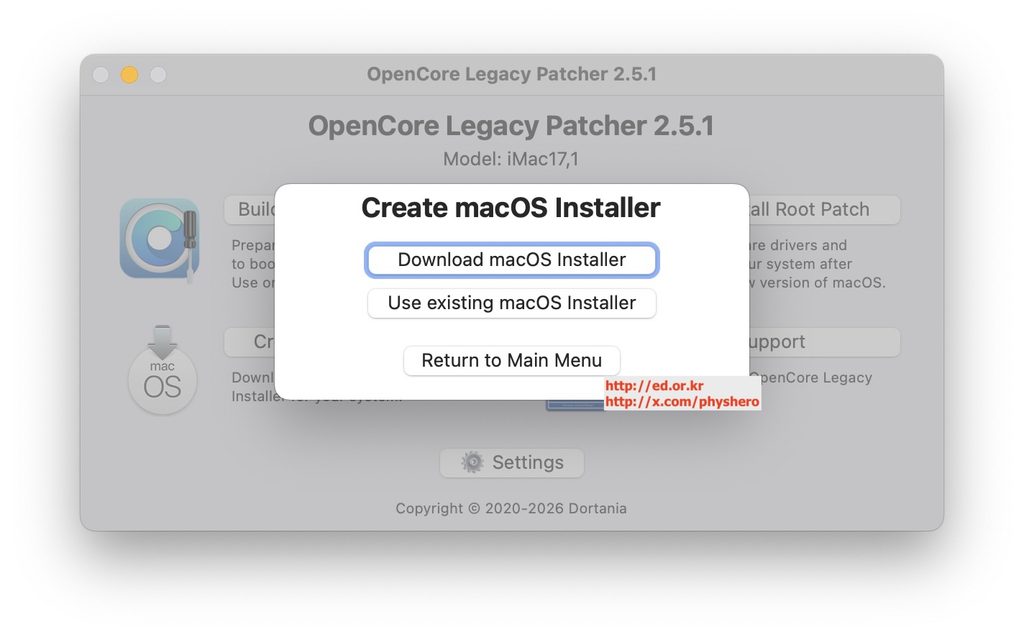
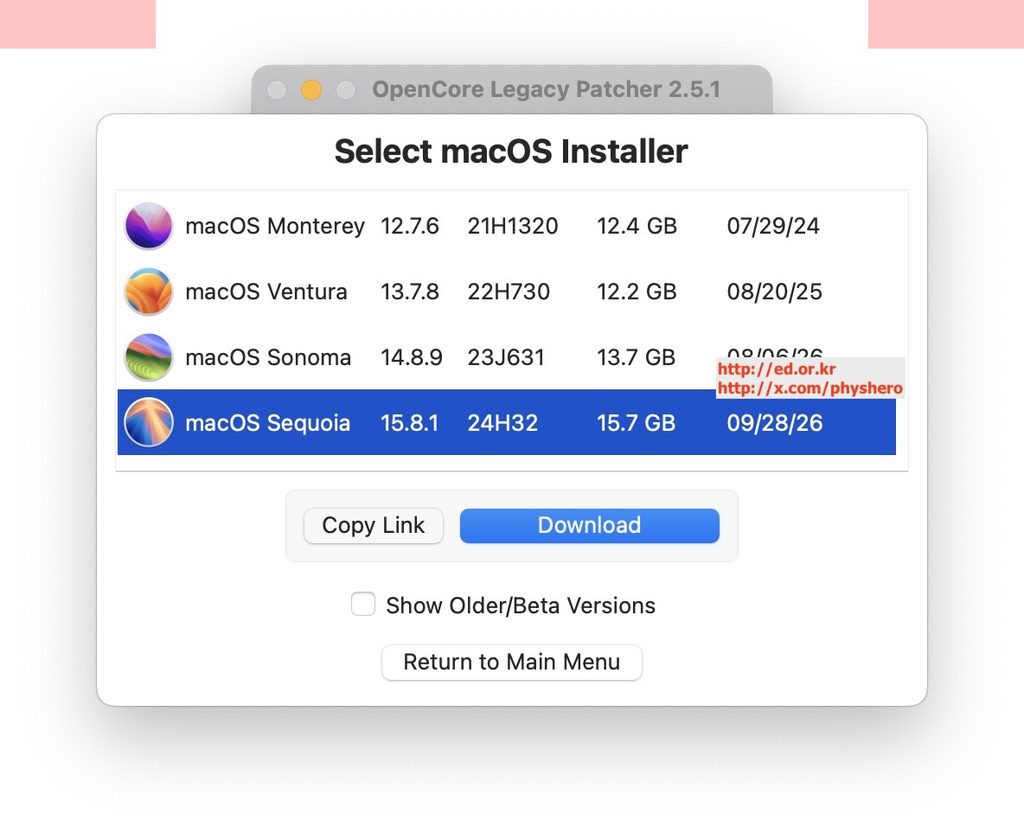
3. Once you run the app, you choose which OS version to install. I went with macOS 15, expecting better security on the latest OS — and with the extra 8GB of RAM arriving tomorrow.
4. I erased a rarely used 64GB memory card to make the installer disk.
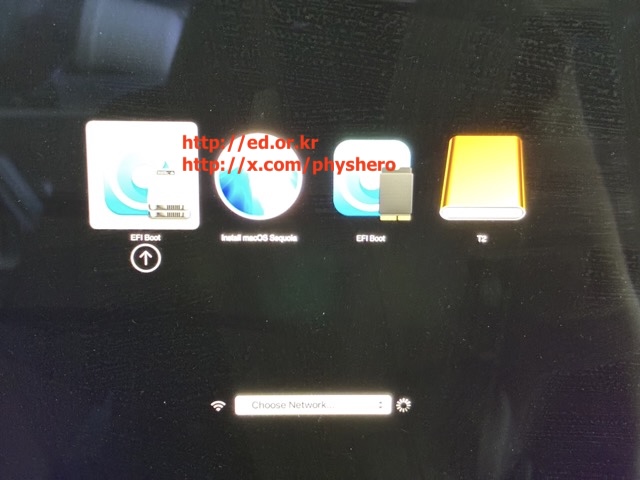
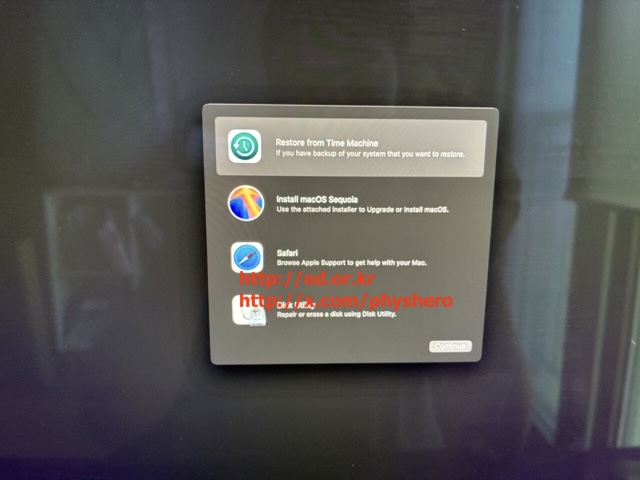
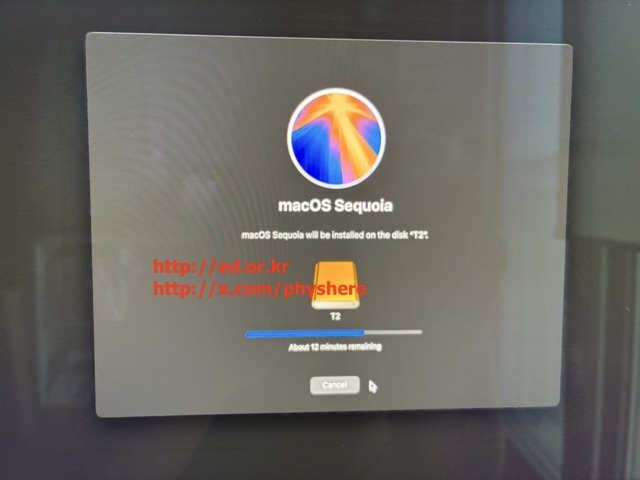
5. Reboot while holding the [OPTION] key, and you’ll get the Boot EFI menu like in the picture below. Select the USB you prepared, and the Mac installs from the files on it.
04. Wrapping up
Even running without the extra 8GB of RAM yet, it’s quite usable with a few light settings. Every app that was blocked or throwing warnings now works — that alone is deeply satisfying. The Passwords app won’t show my saved list, but passkeys work.
One caveat: with no security chip onboard, security-gated features like iPhone Mirroring don’t work. So when I need those, I just remote into my M2 MacBook.
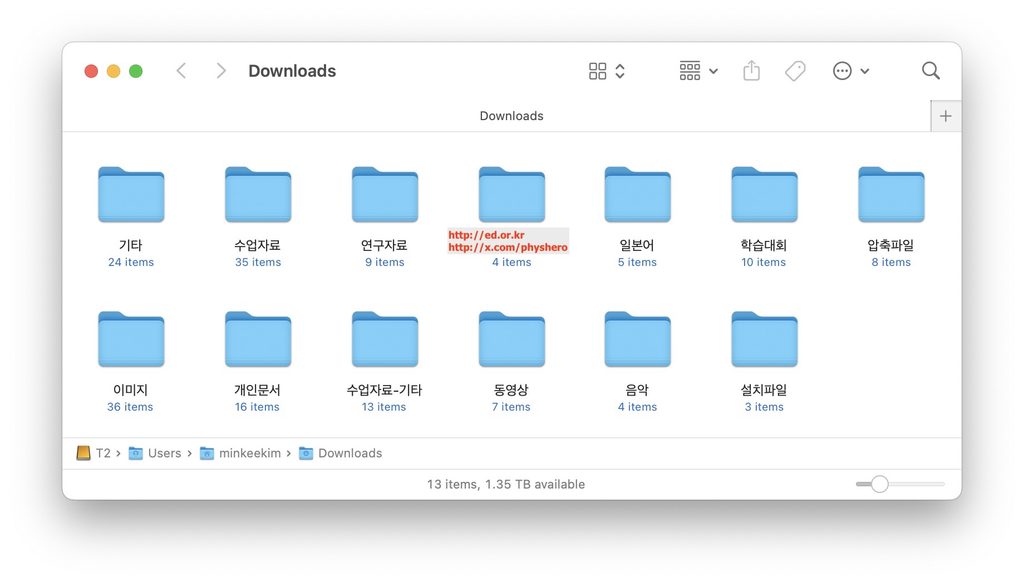
I’m glad the big 27-inch iMac screen is earning its keep again. In the examples below: adding links in the Notes app, finding and cleaning up duplicates in the Photos app, auto-organizing files in the Downloads folder with the Muse app, and more.
Next post teaser
With macOS 15 came Muse AI, and features are getting integrated starting with the Messenger app. I’ll dig into that more when I get the chance.
“Analyze my last week texts in the iMac Messages app.”
I looked at 90 texts from the last 7 days (10/3–10/9). 63 received, 27 sent. 62 iMessages, 28 SMS, no group chats — all 1:1. Thursday (10/8) was the busiest with 23.
Human conversations: 3 threads
- SENDER #1 (00 texts). Coordinating school pickup, a 00만원 transfer, extra wallpaper repair costs, sharing an Independence Hall fall foliage festival link, currency exchange, insurance sign-up. The center of this week’s family logistics.
- SENDER #2 (5): coordinating a morning meetup on 10/3. Charging the EV and getting there by 8.