
Google Helped Recover Gemini’s Hacking Recommendation
Three days ago, I got hacked while working late at night. In the Korean community of Mac, many left kind comments saying they’d also been through something similar. This time I really felt how risky Google Gemini and Google Search can be. Both actually led me to the malicious site.
Ionically, when it came to recovery, my Google Drive backup made the whole process surprisingly easy.
Gemini dodging responsibility
That day I was panicking and basically told Gemini, “Below was your recommendation”. Instead of helping, it just avoided any responsibility, which made me even more flustered. It reminded me of how big tech companies often refuse to admit when something goes wrong.
I must clarify that I did not recommend that URL, - Gemini

ChatGPT’s active help
Occasioinally I use free ChatGPT as well. So I asked it instead. It was super willing to help—probably because hacking is a sensitive topic and it wanted to gather more information. ChatGPT even offered to safely check the binary helper file (the hacking tool) if I uploaded it.

In the end it told me that if I backed everything up quickly and did a clean install, I could recover most things safely. I also learned something new: Mac-specific apps like the built-in Passwords app don’t get completely compromised just because the admin password leaks. External apps like LastPass, though, felt riskier, so I’m planning to clean those up this time. Thanks to ChatGPT I was able to calm down and just focus on backing things up first.
File backup: Google Drive + FreeFileSync

Fortunately, I realized most of my files had already been hard-copied at the beginning of the year. Everything added after that was neatly stored in my two paid Google Drive accounts. The only thing that hadn’t been backed up was the photos in the Photos app. I used FreeFileSync to copy just the changed files to an external hard drive, and it finished really quickly.
Mac clean install
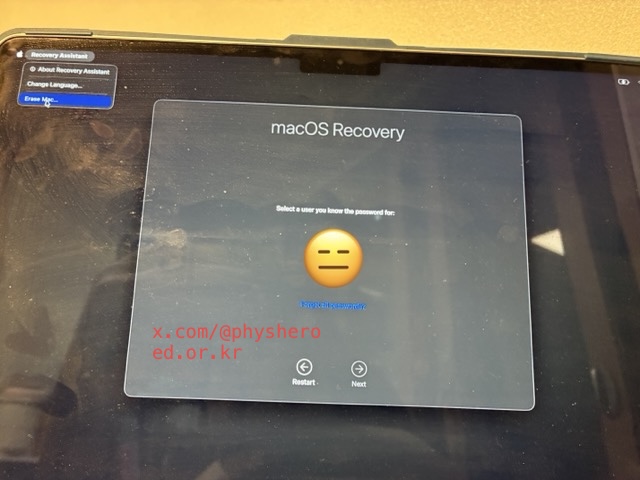
Here comes the process of reinstallation of your Mac. As it took about an hour, you would better get ready to kill the time simutaneously: games, Netflix, or books.
- Hold the power button while rebooting to enter Recovery Mode.
- Choose “Erase Mac” from the menu. It doesn’t feel like a full traditional format, but it wipes everything very quickly.
- I double-checked with Disk Utility just in case, and the disk was basically empty.
- Then I simply reinstalled macOS. No boot disk needed—just a network connection.


Closing thoughts
My MacBook got compromised because of Google Gemini, but thanks to the Google Drive backup I was able to restore it very quickly. Cloud backup really isn’t optional anymore—it’s essential. I’m planning to bring back the older hard-copied files from other devices as well when I have some free time. No more putting it off. While recoverying my Mac again, I figured out that clean-installing a Mac has also become a lot easier. Thankfully technology keeps evolving in ways that actually make our lives simpler. 😊
