
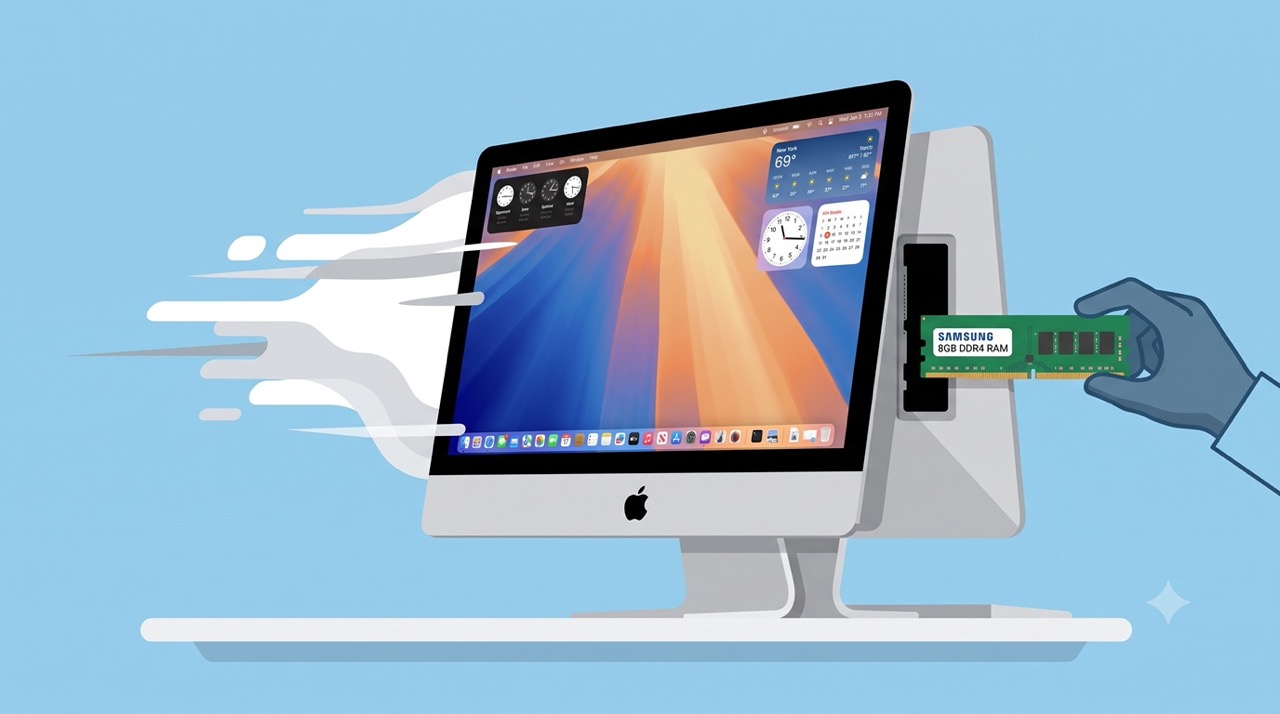
Adding 8GB of RAM to a 2015 iMac
01. Introduction — why I added more RAM
In my previous post (Installing macOS 15 & MUSE on a 2015 iMac) I wrote about installing macOS 15 on a 2015 iMac via OCLP. Back then the extra 8GB of RAM I ordered didn’t arrived yet. So, I ran it on the stock 8GB and wrote that it was “quite usable with a few light settings.”
For light use like web browsing and documents, there really was no problem. But when organizing photos in the Photos app or switching between several apps, I could feel the 8GB ceiling closing in. That’s also why I ordered the extra RAM together with the macOS 15 install in the first place.
02. Bought for $20 — thought it was Samsung
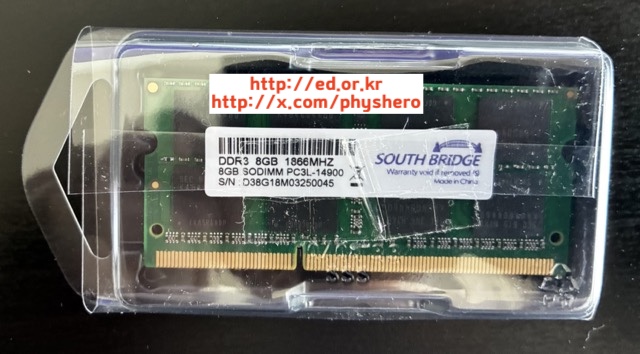
I bought the RAM on Coupang for $20. It’s an old DDR3 spec, so prices have fallen through the decade — no burden at all. I figured “it’s probably Samsung” and ordered without looking closely, but when it arrived, it turned out to be a Chinese-made stick using Samsung chips, as in the photo below. The brand is SOUTH BRIDGE.
I was briefly taken aback. But when I re-checked the seller’s product page, it had said “Samsung chips, made in China” right from the start. I wasn’t scammed — I just bought it without reading. The surprising thing wasn’t the product, it was my own carelessness. Either way, the specs (DDR3 8GB 1866MHz, PC3-14900, SO-DIMM) matched the iMac, so I went ahead.
03. Just open the back panel — done
One of the great virtues of the 2015 27-inch iMac is how easily you can reach the memory slots. As in the photo below, opening the cover on the lower back reveals the RAM slots immediately. No disassembly tools, no delicate maneuvering needed.
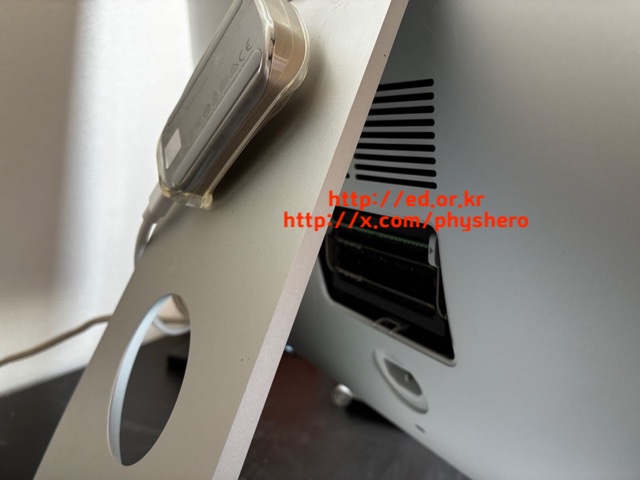
Press the new stick firmly into the empty slot next to the existing 8GB, close the cover, and you’re done. It took less than 5 minutes. Calling it an “installation” feels almost embarrassing.
04. Before-and-after with Geekbench
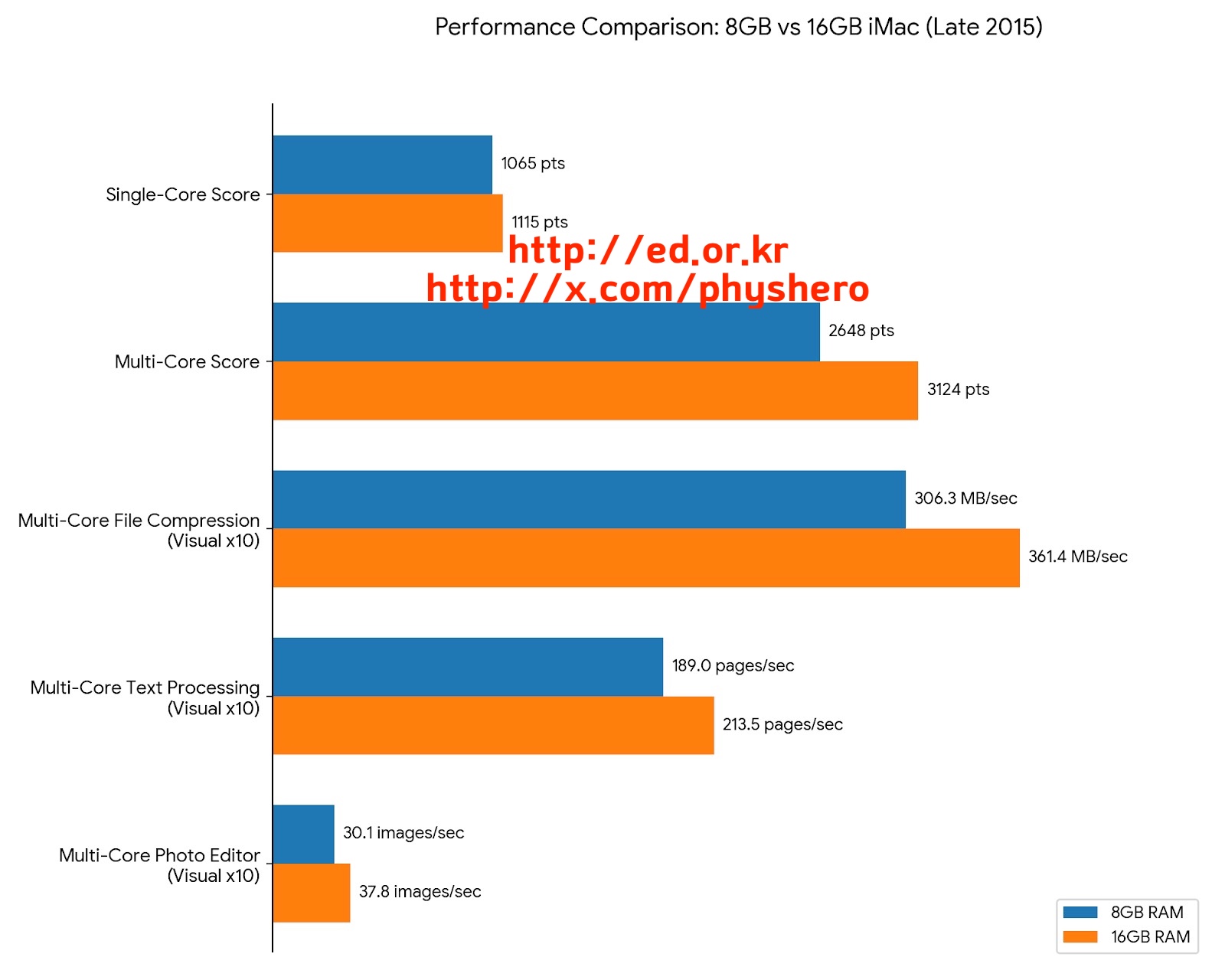
“Feels faster” isn’t convincing on its own, so I measured before and after with the Geekbench app. Here are the results.
- Single-Core: 1065 → 1115 pts (~5% improvement)
- Multi-Core: 2648 → 3124 pts (~18% improvement)
- File compression: 306.3 → 361.4 MB/sec (~18% improvement)
- Text processing: 189.0 → 213.5 pages/sec (~13% improvement)
- Photo editor: 30.1 → 37.8 images/sec (~26% improvement)
The single-core score barely moved. Of course — the CPU itself is unchanged. But multi-core and memory-heavy tasks (compression, photo editing) improved by around 20%. In daily use, the stuttering when switching between multiple open apps is noticeably gone.
05. Conclusion — the best $20 upgrade
If you’ve hesitated over a RAM upgrade because of the cost in the past, there’s no reason to hesitate now. Old-spec memory is at rock-bottom prices, and on the 2015 27-inch iMac the swap takes 5 minutes through the back panel.
$20 for +18% multi-core performance and +26% photo editing. In terms of value, there’s no better upgrade. If you plan to keep using an old iMac, adding RAM is less a choice and more a necessity. Highly recommended.